
If you ever wanted to edit a photo, design a post for your shop, or write your business name on a picture, you have probably heard of Photoshop. It is an excellent program, but it runs on a paid monthly subscription, and many people in Syria and Turkey find it hard to pay and subscribe. This is where a program called PhotoCraft comes in.
PhotoCraft is a new photo editor that is free and open source, written entirely in the Rust programming language. It tries to offer tools close to Photoshop, with menus and shortcuts in almost the same places, and it runs on Windows, Mac and Linux, and even inside the browser. In this article we explain in simple words what it is, what it offers, and whether it suits you or not.
An honest note: PhotoCraft is an independent project that is not affiliated with Adobe, and it is still at an early experimental stage, as its own developers say. We will tell you honestly what it does well and what it still lacks.
What does open source mean?
Open source means the program’s code is published for everyone: anyone can read it, improve it and suggest changes. PhotoCraft uses two free licences, MIT and Apache 2.0, which means using it costs nothing and needs no subscription.
And what does that mean for you as an ordinary user?
- You pay no monthly fee and need no account to run the program.
- It works on your computer without internet, and your pictures stay with you instead of being uploaded anywhere.
- The smart selection feature also runs on your own computer, with no cloud and no account.
- The code is open to everyone, so there are no secrets about what the program does.
Before we start: a few simple words you should know
- Layer: a transparent sheet placed over the picture. You put text, a shape or an adjustment on it, and you can move or hide it without touching the original picture.
- Mask: a way of telling the program to apply the change here only, not everywhere.
- Selection: drawing a line around part of the picture so you can work on it alone.
- Filter: a ready-made effect such as blur or sharpening that is applied to the picture in one click.
What can PhotoCraft do?
Edit your photo’s colours without fear of ruining the original
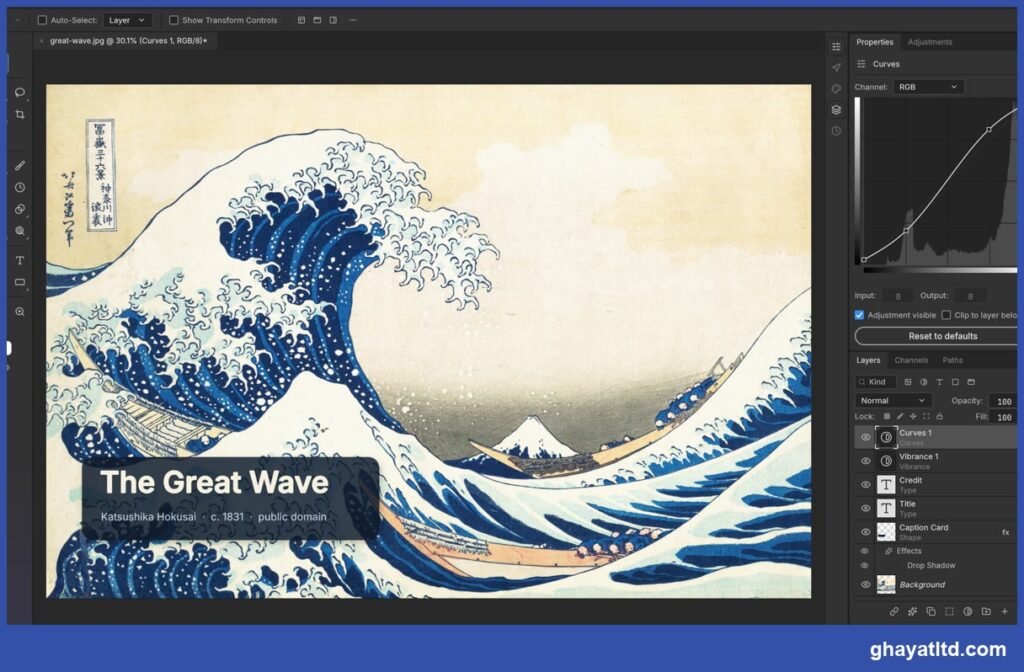
The most important idea for a beginner to learn is adjustment layers. Instead of changing the picture itself, you place a layer on top that controls brightness and colour. If you do not like the result, you hide the layer and the picture returns as it was, as if nothing happened.
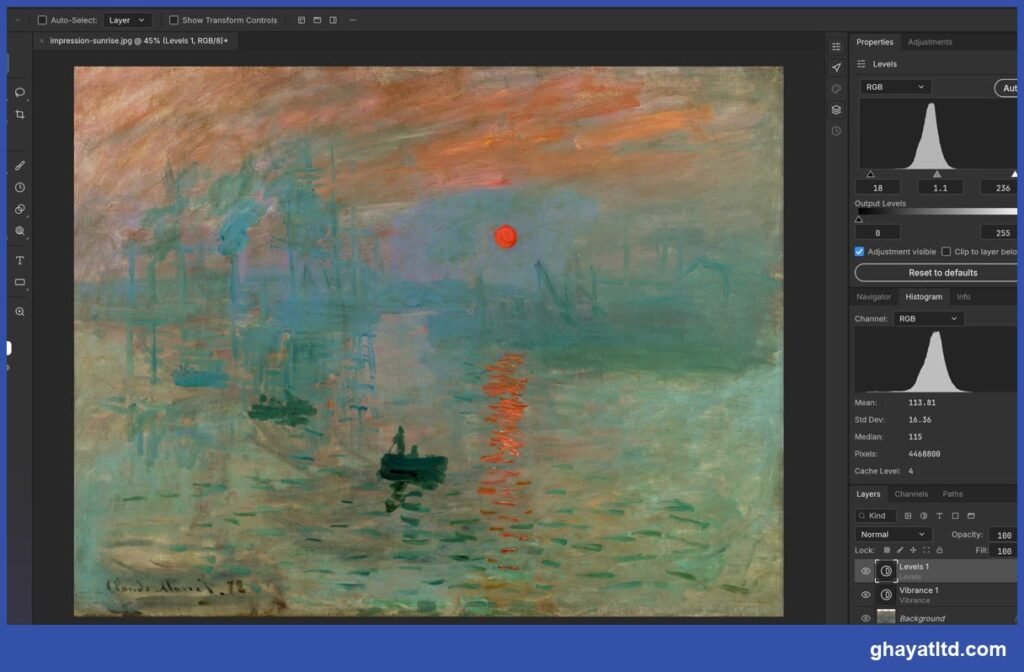
The program provides well-known adjustment tools such as Levels, Curves, Vibrance and Black and White, with a live chart that shows you how the light is distributed in your picture.
Change only one part of the picture
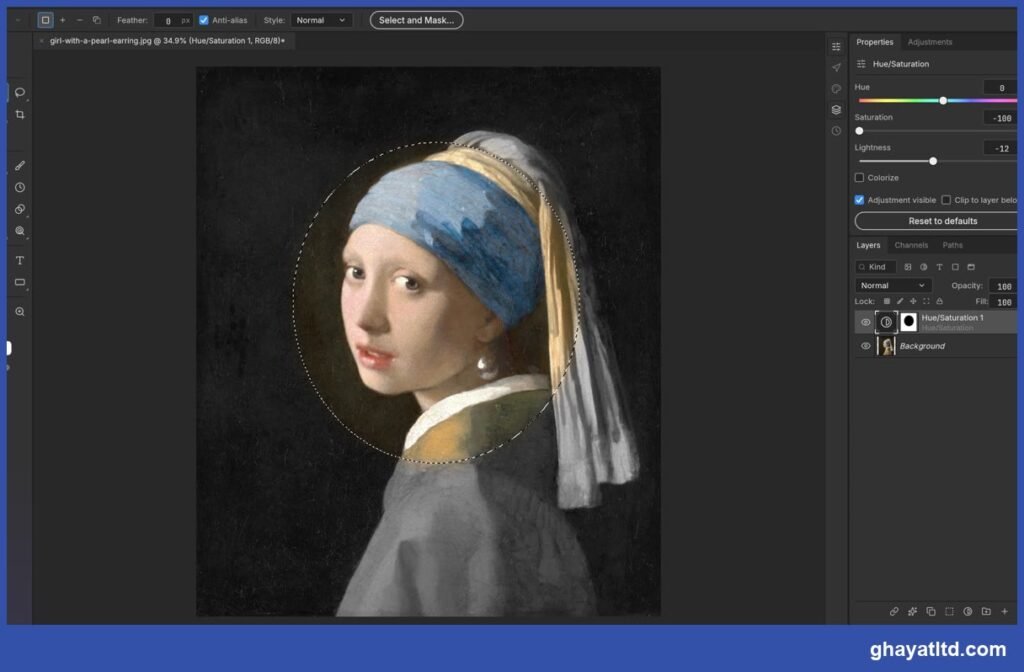
Want to colour the face and keep the background grey? Or brighten the sky without touching the people? Select the area with a selection tool, then turn it into a mask. There are manual selection tools, and smart ones that pick out the person or main object in the picture automatically.
Write on your pictures like a professional
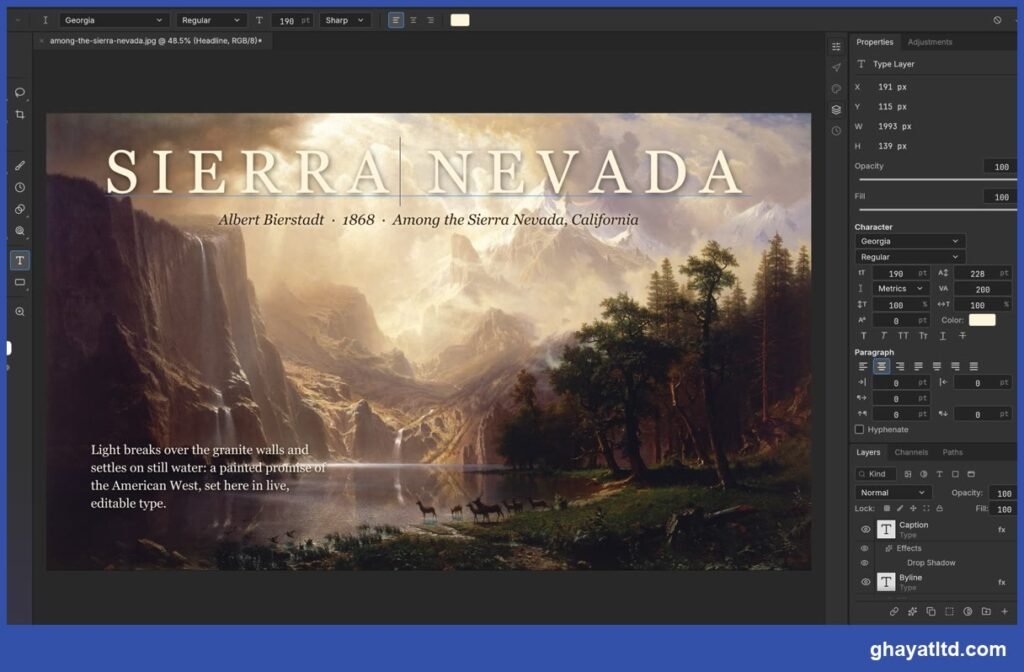
If you design posts for your shop or page, you will love this feature. You type the headline straight onto the picture, change the font, size, spacing and colours, and the text stays editable at any time.
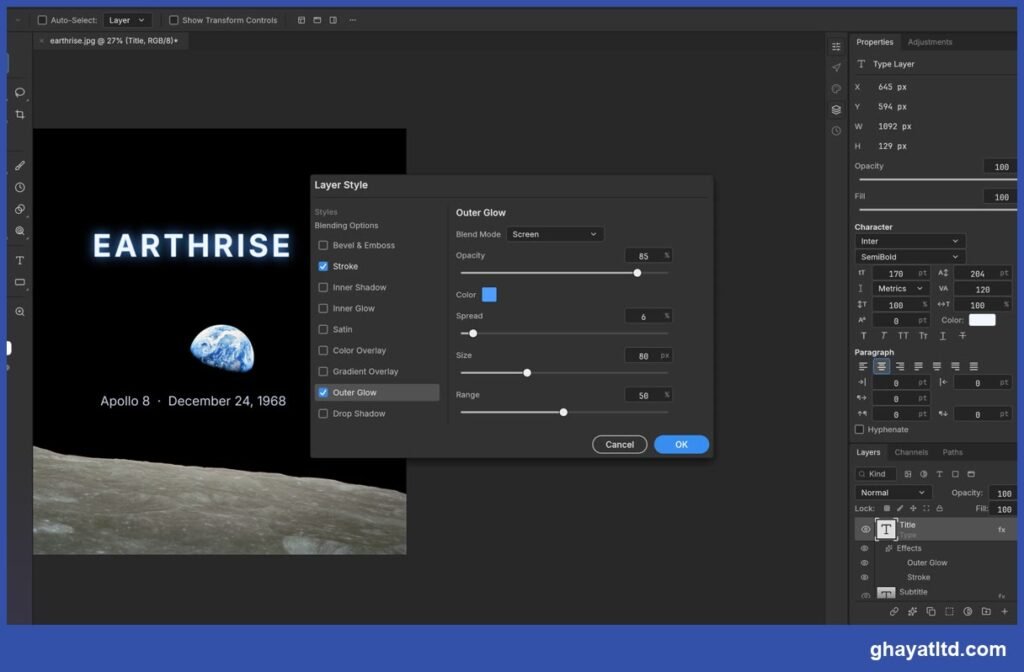
Add a shadow, a glow and an outline in one click
Layer effects give your text and shapes an attractive look: a shadow behind a word, a glow around it, an outline or a shine. You can copy an effect from one layer and paste it onto another, so you do not start over.
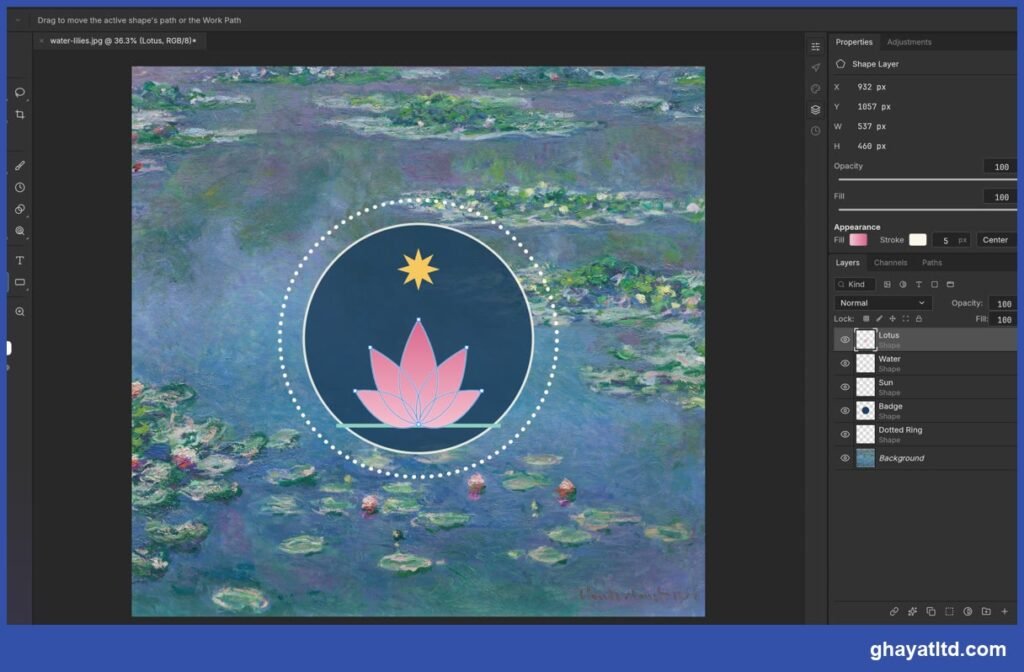
Draw shapes that scale without limits
Vector shapes such as circles, stars, lines and the pen tool never get blurry however much you enlarge them, because they are stored as formulas rather than coloured dots. They suit designing badges, icons and simple logos.
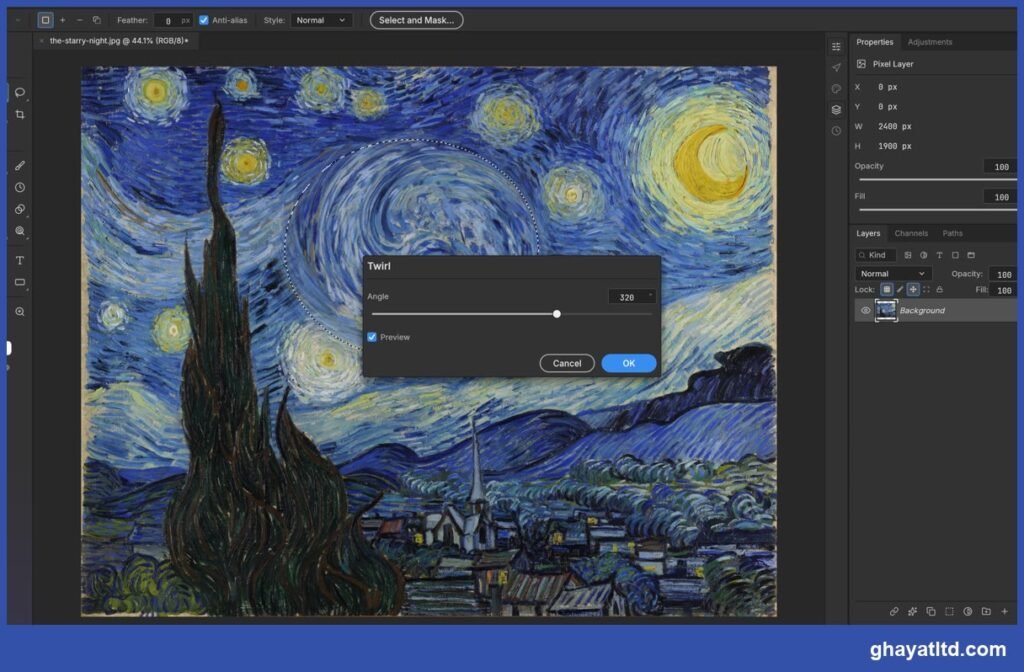
Try filters and see the result before applying them
Every filter shows its result live on the picture before you click OK, even inside a selected area only. You will find several kinds of blur, sharpening, noise reduction, artistic distortions, oil-paint effects and more.
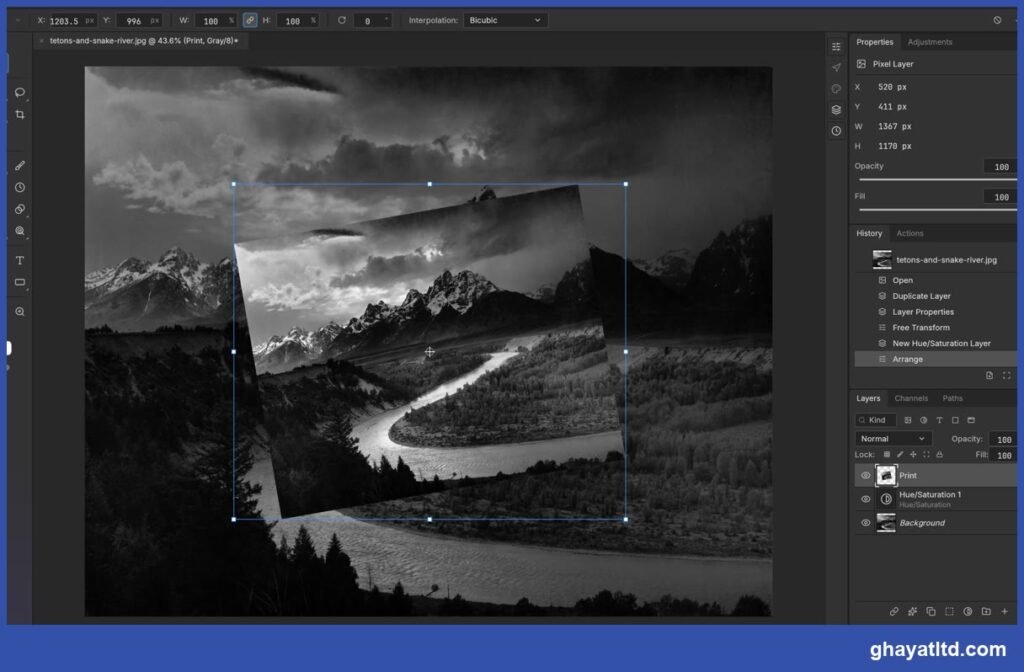
Rotate, resize and adjust, and undo whenever you like
The Free Transform tool lets you enlarge, rotate or tilt a picture. The nicest part for a beginner is that the History panel remembers every step you took, so you can go back to any earlier moment, even a single brush stroke.
Save and export in the format you want
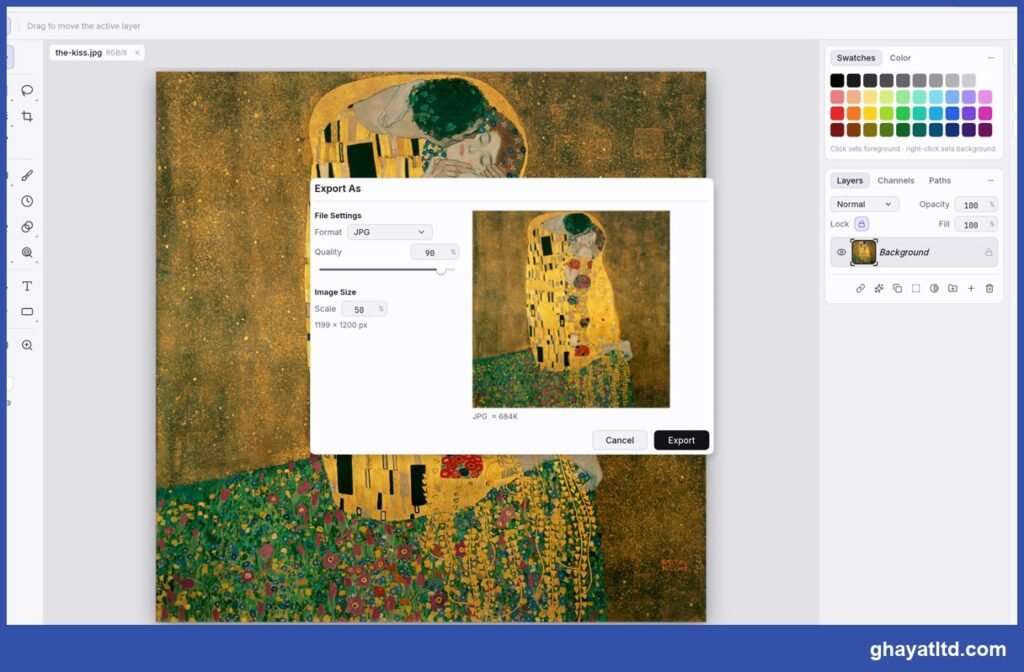
When you finish, you export your work as JPG, PNG, WebP or other formats, choose the quality and size, and see a preview and the expected file size before saving. There is also a quick export to PNG in a single click.
Can it open Photoshop files?
Yes, it opens the well-known PSD files, edits them and saves them while keeping the layers. Its developers say they tested opening and saving on more than 300 real files, and the result stayed identical in the vast majority of them. It also opens other formats such as TIFF and SVG, and files from Krita and Paint.NET.
Is it right for you? An honest answer
PhotoCraft suits you right now if you are:
- A beginner who wants to learn the basics of photo editing at no cost.
- A shop or page owner who needs simple photo edits and text on pictures.
- Someone who likes trying free software and supporting open projects.
It may not suit you yet if you are:
- A professional who relies every day on very advanced Photoshop features.
- In need of generative AI tools, which are among the biggest current gaps according to its developers.
- Dependent on third-party Photoshop plug-ins, as compatibility is still limited.
The developers themselves admit that the program is still experimental and not yet a full replacement for daily professional work, and that some tools are not finished, so expect to meet a few rough edges. But it is developing quickly, and its page shows that the team adds improvements every day.
How to get started, step by step
- Open the official download page on the ArtCraft website.
- Choose the version for your device: an MSI file for Windows, a DMG for Mac, or an AppImage, DEB or RPM for Linux.
- Install the program and open it, then choose File then Open to open one of your pictures.
- Start by trying one adjustment layer, such as Vibrance, and watch how the picture changes.
- If you make a mistake, do not worry: press Ctrl and Z to undo, or open the History panel and go back to any step.
Golden tips for beginners
- Always work on a copy of your picture and keep the original somewhere safe.
- Prefer adjustment layers to editing the picture directly, because they let you undo easily.
- Save a copy as PSD or in the program’s own format to keep the layers, then export a JPG or PNG copy for publishing.
- Practise first on pictures you do not care about, because trying things is the fastest way to learn.
- If you run into a bug, report it on the project page, because that helps the developers fix it.
Frequently Asked Questions
Is PhotoCraft really free?
Yes. It is open source under the MIT and Apache 2.0 licences, and you can download and use it without any subscription.
Is it a pirated copy of Photoshop?
No. The program was written from scratch based on public specifications, without using any code or files from Adobe. It is an independent project with no connection to Adobe.
Does it need an internet connection?
No. It runs on your computer without internet, and you only need a connection to download and update it.
Can I use it instead of Photoshop today?
For simple and medium work, and for learning, probably yes. For complex professional work it is better to try it yourself first, because it is still at an experimental stage.
What do we think at Ghayat?
Having a free, open-source program with these capabilities is good news for everyone starting out in design and photo editing. Try it yourself and compare it with what you need, because trying it is the real judge. This article is an introduction to the project based on what its developers publish on its official page.
And if you need a ready-made professional design for your brand or advertising campaigns in Syria or Turkey, the Ghayat team will be happy to help.
Image source: screenshots from the official project page on GitHub, and the artworks shown in them are in the public domain. Adobe and Photoshop are trademarks of Adobe Inc. and are mentioned here for description only.


